Some time ago I was asked to create SSRS report that will consume SOAP web service. Report was pretty simple – make call to web service with some parameter, get the result and display them in one table. Unfortunately, it seems that consuming web services in SSRS is not something that is often used, so there are just few examples on the web. Let’s try to change it just a bit and create some simple report that will use SOAP implementation of web service.
Source
I will use some free and publicly open web service returning data related to sports events: https://www.openligadb.de
Web service is located here (descriptions are in German): http://www.openligadb.de/Webservices/Sportsdata.asmx
WSDL is available at http://www.openligadb.de/Webservices/Sportsdata.asmx?WSDL
Creating report
Ok, so let’s start with the report. In the first step we have to create data source. We have to choose XML as Type and provide web service address in the connection string:

Next step is to create proper datasets. Our report will show top scorers for chosen league in chosen season. To get top scorers we have to get league, and to get league we have to get available sports at first. To do this we will use GetAvailSports message.
Call to web service in SSRS is made using „XML Data Provider Query Language„. Microsoft describes it in following way:
The query language supported through the XML data provider resembles the XML Path language (XPATH). However, there are both syntactical and behavioral differences between the two languages. Perhaps the most notable difference is the lack of querying and filtering support.
And this is how call to GetAvailSports looks like:
<Query>
<Method Namespace="http://msiggi.de/Sportsdata/Webservices" Name="GetAvailSports">
</Method>
<SoapAction>
  http://msiggi.de/Sportsdata/Webservices/GetAvailSports
</SoapAction>
</Query>
Notice that we have to specify Namespace and message in the <Method />. You can find this information in web service’s WSDL:

Specifying <SoapAction /> is not mandatory, because it is implicitly created with namespace followed by method (message) name and web service should have exactly the same definition of action included:

However, this will not be always the case, so beware of that and check SoapAction definition in WSDL.
Here is how our dataset should look like:
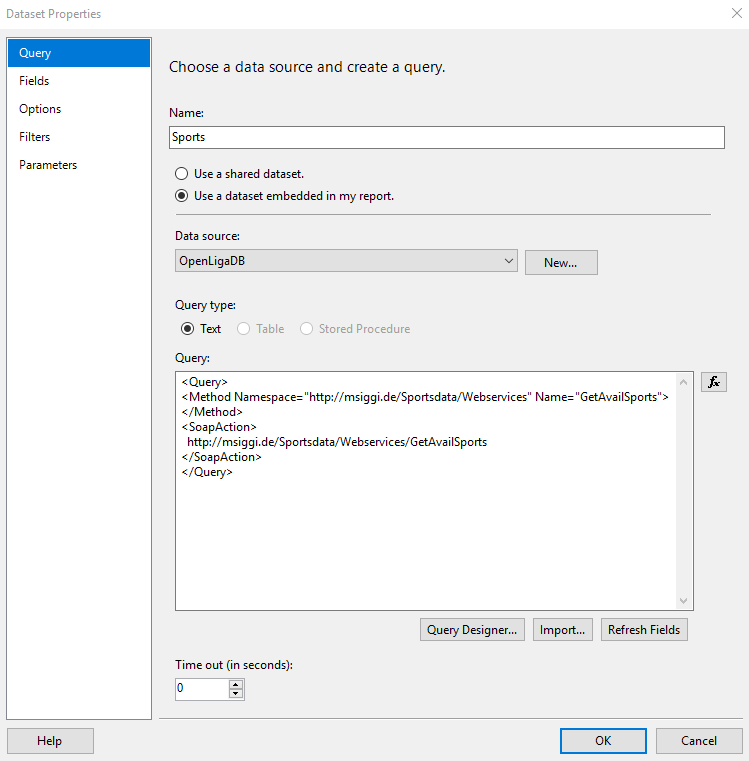
If you open Query Designer and execute the call to web service (using „!” icon) you should get response from web service:
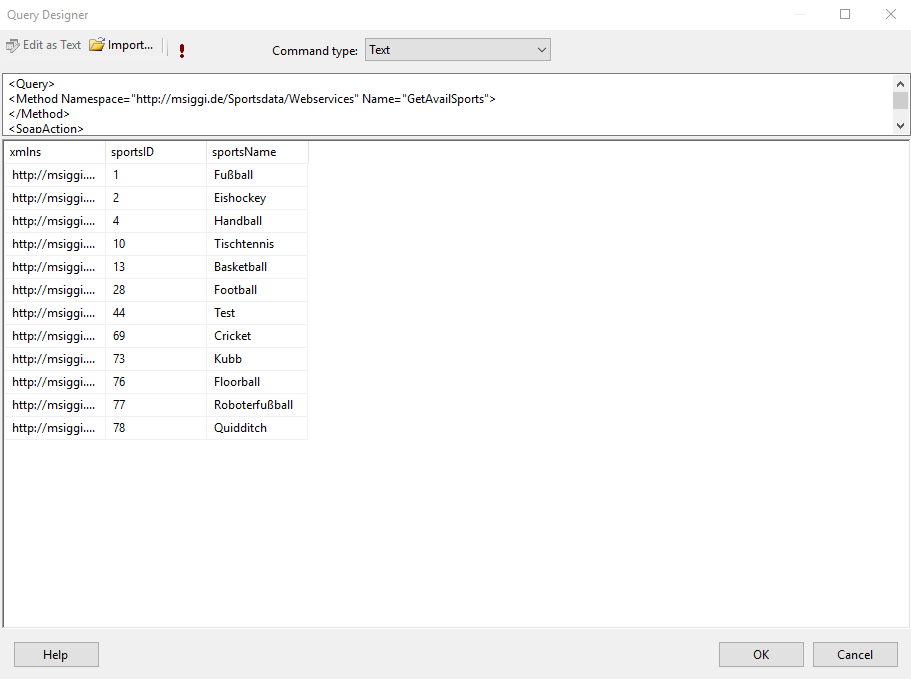
Then just click OK to close the window and going to Fields tab on Dataset Properties will give you list of fields returned from web service. The „xmlns” field contains the namespace so you can just ignore it. GetAvailSports returns an array of elements of „Sport” type:
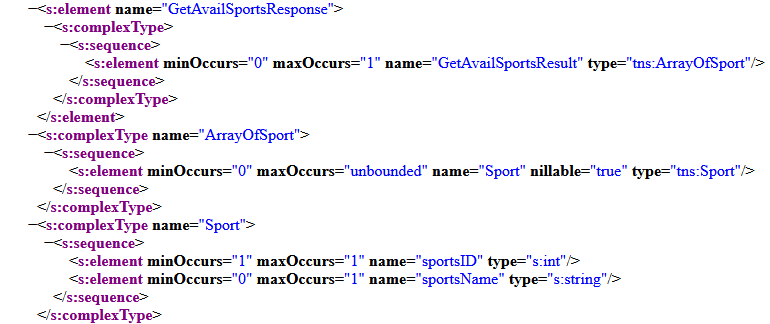
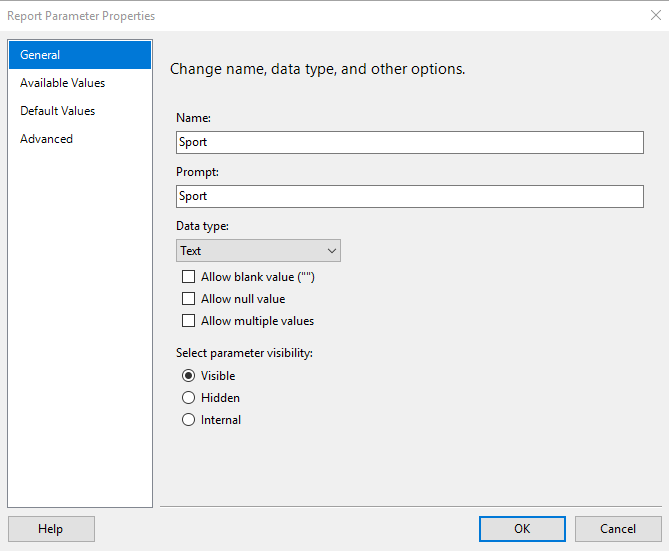
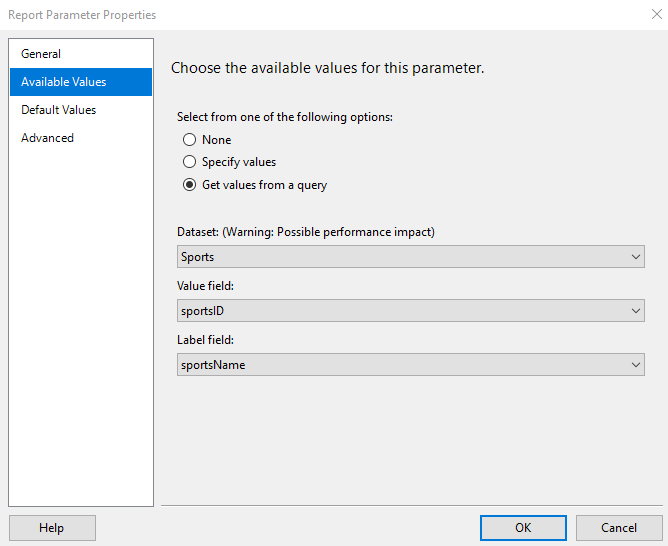
So in response we get an array of „Sports” object containing „sportsID” and „sportsName” and SSRS is interprating this into result rows. Let’s allow user to chose one of the available sports adding a „Sport” parameter to the report:
In the next step we will create „Leagues” dataset. It will call GetAvailLeaguesBySports message. This message requires to call it with „sportID” parameter value specified:
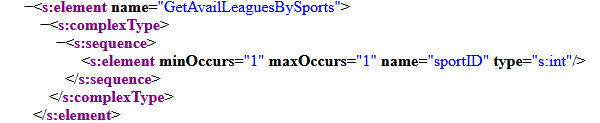
„minOccurs” and „maxOccurs” both set to 1 states that „sportID” parameter value is required and it should be specified exactly once.
The valid call to GetAvailLeaguesBySports should look like this:
<Query>
<Method Namespace="http://msiggi.de/Sportsdata/Webservices" Name="GetAvailLeaguesBySports">
</Method>
<Parameters>
<Parameter Name="sportID" Type="int">
<DefaultValue></DefaultValue>
</Parameter>
</Parameters>
<SoapAction>
  http://msiggi.de/Sportsdata/Webservices/GetAvailLeaguesBySports
</SoapAction>
</Query>
It differs from our previous example by specification of <Parameters />. We are making call with „sportID” parameter. The value of the parameter should be set up on „Parameters” tab of dataest properties:
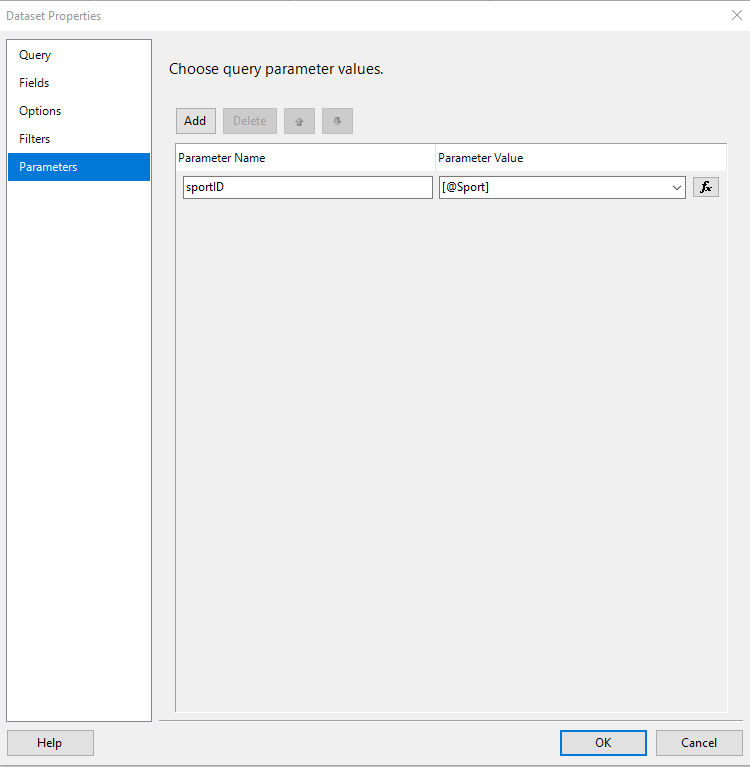
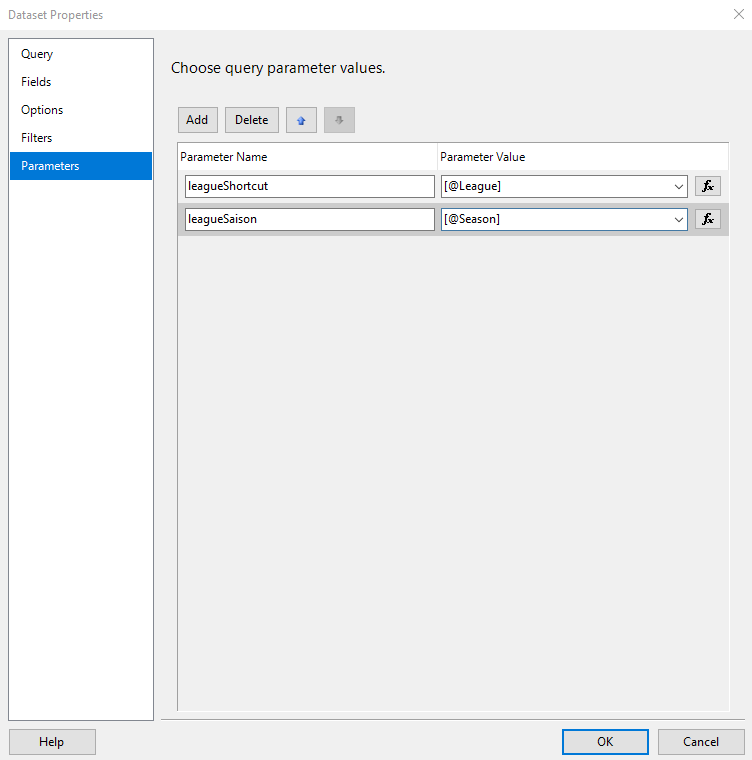
Parameter Name should be set to name required by web service (in our case „sportID”), and the parameter’s value to the value of „Sport” parameter we defined earlier.
NOTE: similarly to the <SoapAction /> explicit specifying <Parametrs /> is not mandatory. We can skip whole <Parameters /> section and just set parameter name and value in dataset’s „Parameters” tab and it will work just fine.
The „Leagues” dataset looks like that:
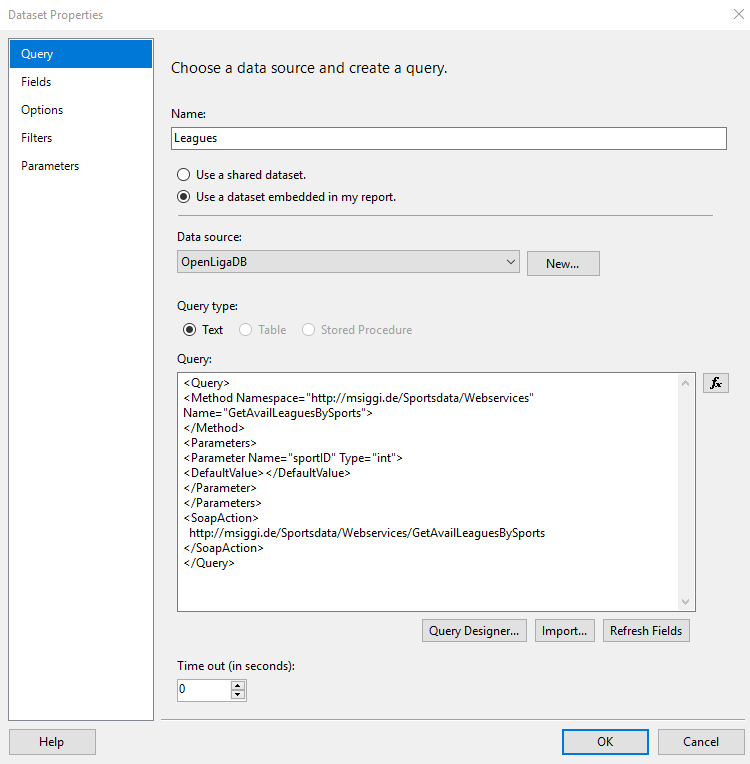
We can open Query Designer and hit „!”. We will be prompted to specify value of „sportID” parameter and we can choose one from the list returned by „Sports”, for example:
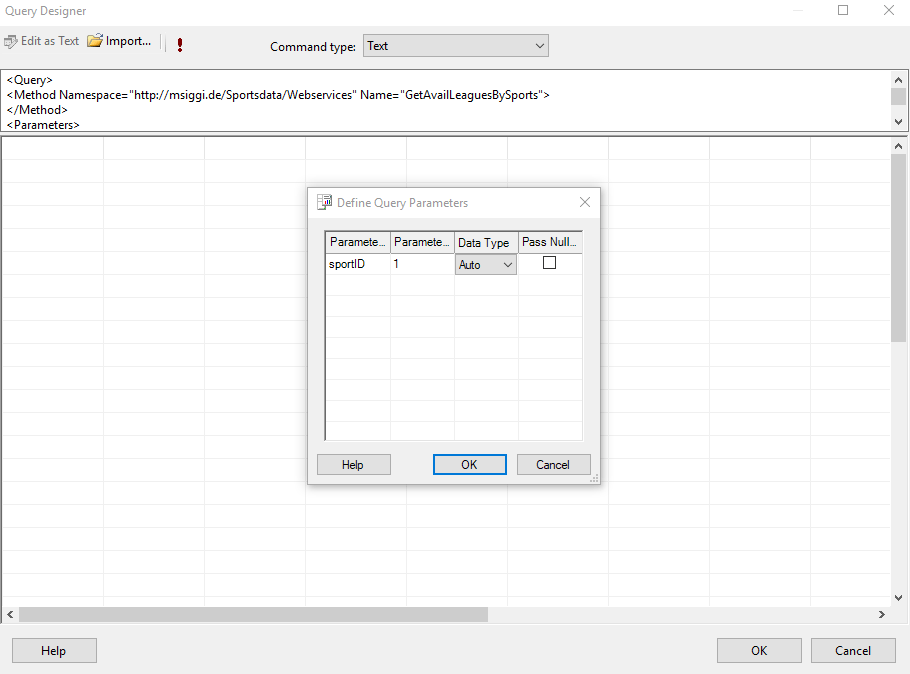
This will give us results returned by GetAvailLeaguesBySports with „sportID” set to 1:
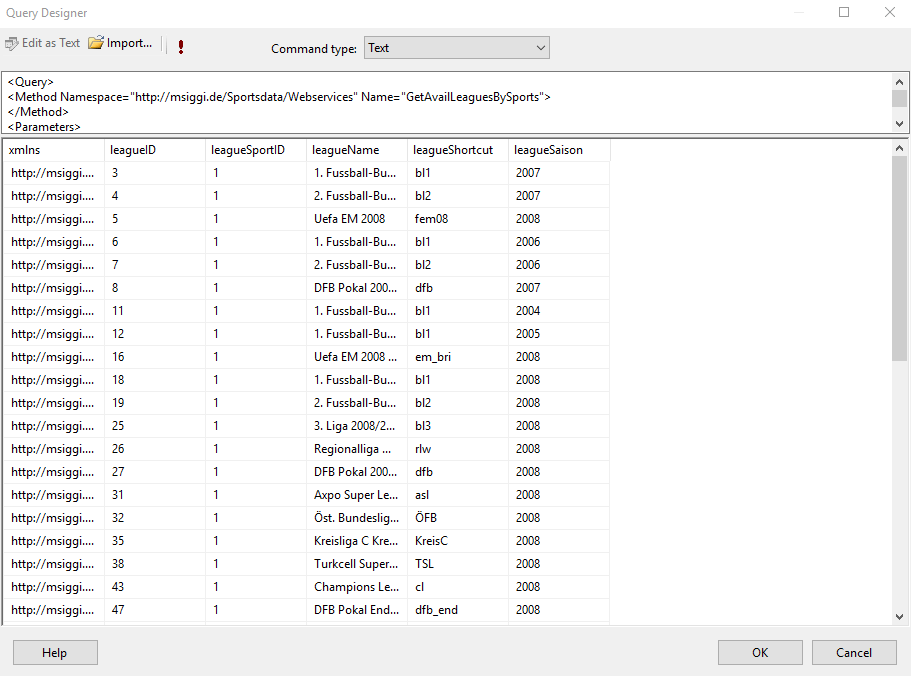
As you can see we get the list of football leagues alongside with leagues season.
Ok, but our goal was to create report that displey top scorers for given league in given season. We can do it by calling GetGoalGettersByLeagueSaison message:
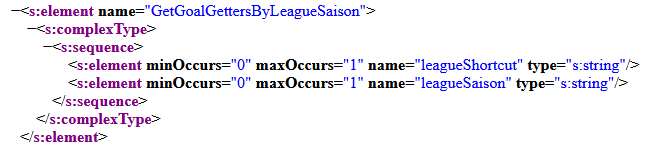
We have to provide „leagueShortcut” and „leagueSaison” parameters values. Let’s create corresponding report parameters for this. „League” parameter:
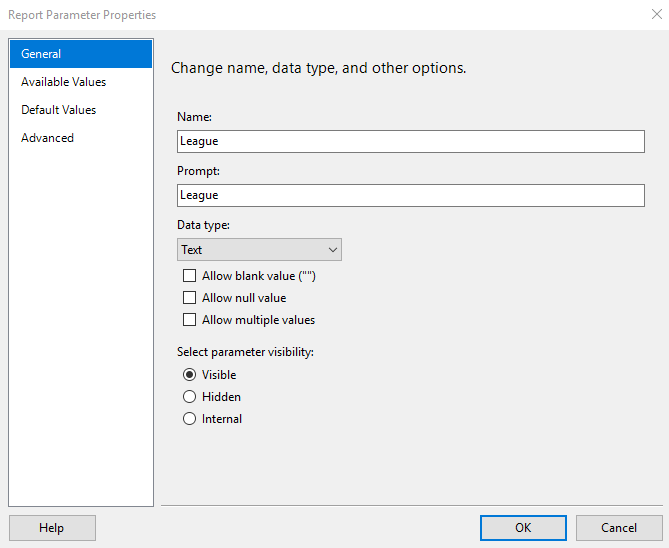

„leagueShortcut” should be set up as parameters value because this kind of value is exptected by GetGoalGettersByLeagueSaison.
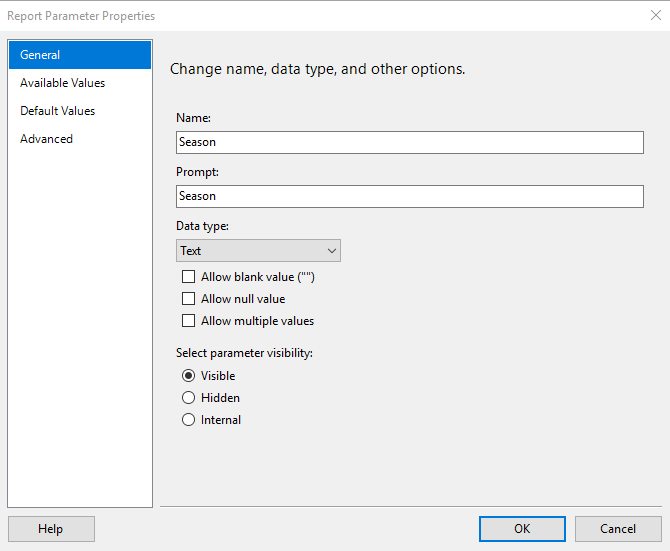
The last parameter will be „Season”. We will make it as simple text parameter that user should fill out manually:
Right now we are ready to create „TopScorers” dataset:
<Query>
<Method Namespace="http://msiggi.de/Sportsdata/Webservices" Name="GetGoalGettersByLeagueSaison">
</Method>
<Parameters>
<Parameter Name="leagueShortcut" Type="string">
<DefaultValue></DefaultValue>
</Parameter>
<Parameter Name="leagueSaison" Type="string">
<DefaultValue></DefaultValue>
</Parameter>
</Parameters>
<SoapAction>
  http://msiggi.de/Sportsdata/Webservices/GetGoalGettersByLeagueSaison
</SoapAction>
</Query>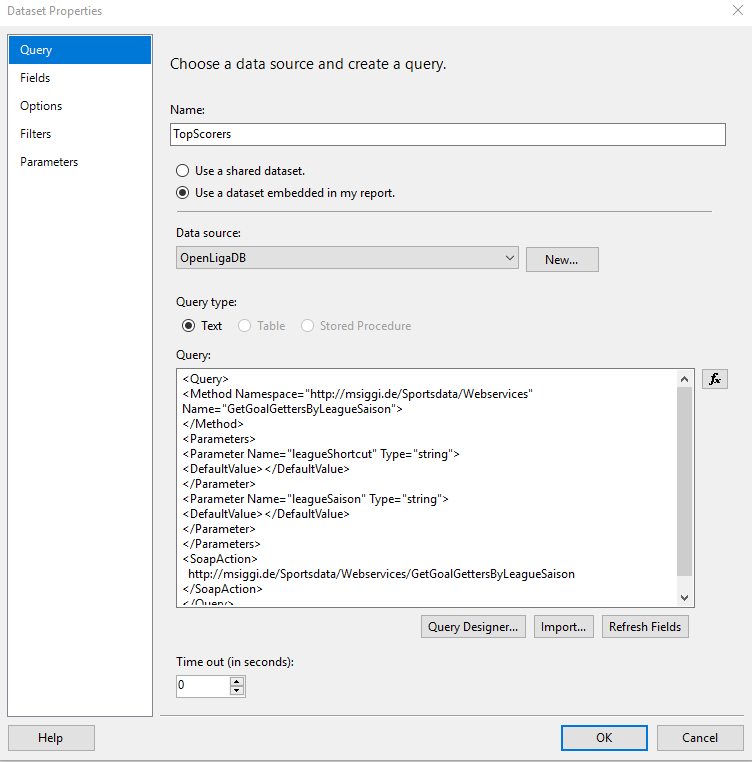
The last step is to set up parameters:
Then go to Query Designer, hit „!” and let’s pass „bl1” as „leagueShortcut” value and „2020” as „leagueSaison” value. We get following results:

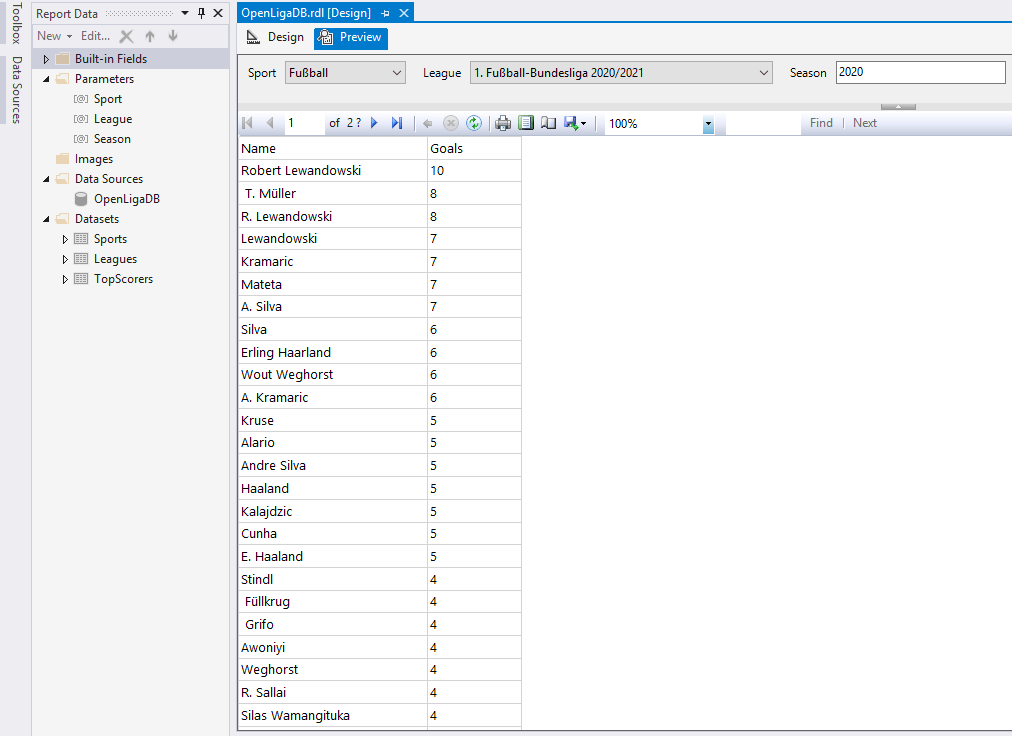
So we got the data we originally wanted – top scorers names with number of scored goals. It looks like there are some inconsistencies in the data, for example Robert Lewandowski is counted three times by different variants of name, but nevermind – our goal was to consume web service inside report, not to verify occuracy or usefulness of returned data.
The last step will be adding table presenting the data. That’s it. Final report should look like this:
Want to know more?
If you want to get some more information about consuming web services in SSRS report you can check out Microsoft’s documentation right here. In particular please note Auto-Detection of XML Structure and Limitations and Common Pitfalls sections and take special look at the way SSRS is interpreting web service’s results that have some more complex structure.
 SQL and stuff